If you’ve ever felt like the text on your Chromebook is way too tiny… or maybe everything looks huge and clunky… you’re not alone.
The culprit? Your screen resolution settings.
Most people never touch them, but here’s the truth: adjusting resolution can make your Chromebook easier on the eyes, more comfortable to work on, and even better for streaming or gaming.
The best part? It only takes a few clicks (or one simple keyboard shortcut).
In this guide, I’ll walk you through how to change screen resolution on a Chromebook, break down the options, and share quick fixes if things don’t look right.
Let’s jump in. 👇
What Is Screen Resolution on a Chromebook?
Think of screen resolution like the grid of pixels your screen uses.
-
Higher resolution = more detail, sharper text, but smaller icons.
-
Lower resolution = less detail, but everything looks bigger.
Most Chromebooks default to settings that balance clarity and usability. But sometimes you’ll want to tweak it — maybe to get more workspace or to make things easier on your eyes.
How to Change Screen Resolution on a Chromebook
Here’s the step-by-step guide. It takes less than a minute.
Step 1: Open Quick Settings
Click the time in the bottom-right corner of your screen.
A small panel will pop up.
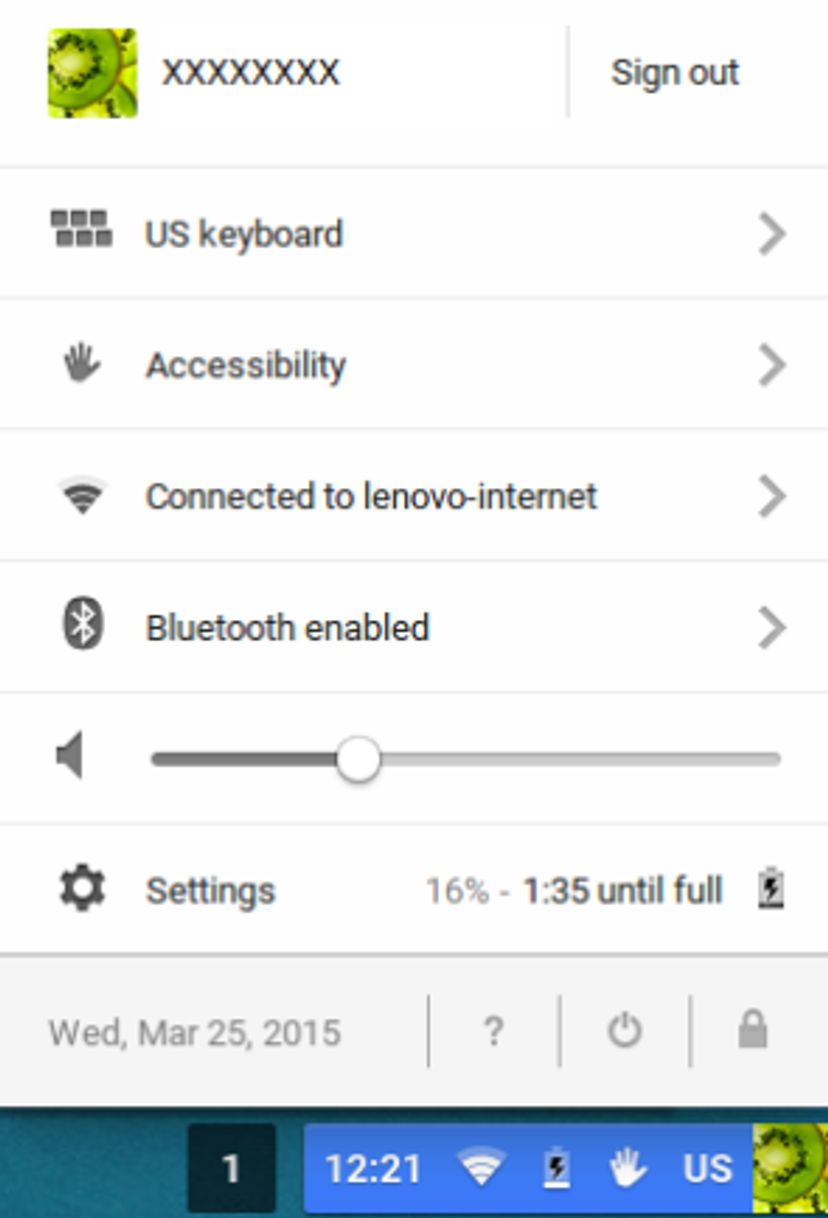
Step 2: Go to Settings
Click the gear icon ⚙️ to open Settings.

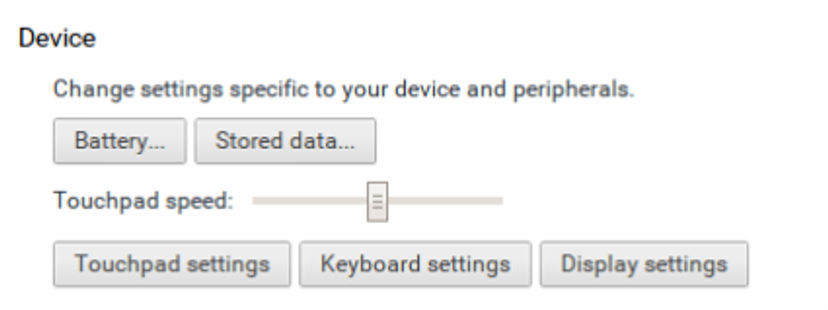
Step 3: Open Display Settings
In the Settings menu, scroll down to Device.
Select Displays.
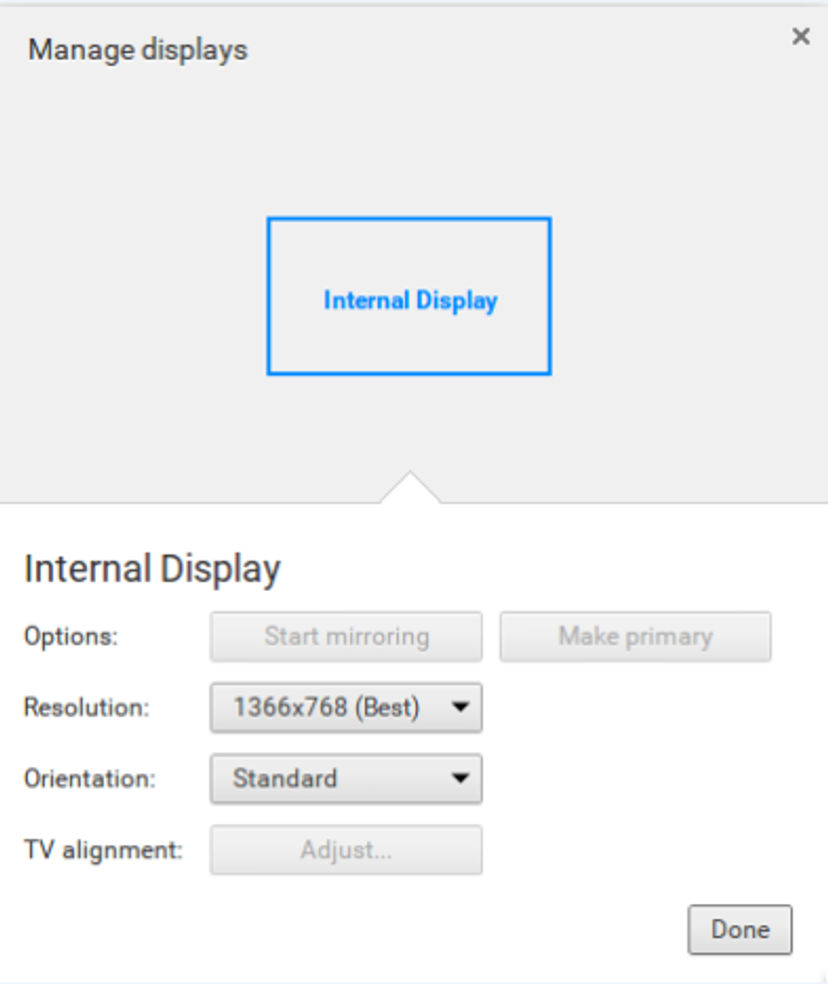
Step 4: Adjust Resolution
Use the Resolution slider to pick your preferred setting.
Higher = smaller items, sharper details.
Lower = larger items, less detail.
Step 5: Confirm Your Choice
Your screen will instantly adjust.
If it looks good, you’re done! 🎉
Shortcut: Change Resolution with a Keyboard Trick
But wait, there’s more!
Chromebooks have a hidden keyboard shortcut for resolution changes:
Press Ctrl + Shift + “+” → makes everything bigger.
Press Ctrl + Shift + “–” → makes everything smaller.
Press Ctrl + Shift + 0 → resets to default.
This is super handy when you want a quick change without opening Settings.
Common Problems and Fixes
Running into issues? Here’s how to fix them:
-
Resolution slider missing: Restart your Chromebook. If it persists, check for system updates.
-
External monitor looks blurry: Use the Display settings to adjust that monitor separately.
-
Everything looks too small: Lower the resolution or use the Ctrl + Shift + “+” shortcut.
Conclusion
Changing screen resolution on a Chromebook is fast, easy, and makes your device way more enjoyable. With just a few clicks — or a quick keyboard shortcut — you can fix blurry screens, make text easier to read, or get more workspace.
Remember:
-
Start with the recommended resolution.
-
Adjust based on comfort and task.
-
Use shortcuts for on-the-fly changes.
The right settings keep your Chromebook working with you, not against you.
Compare with Windows and Mac guides, or check live viewport values on our viewport checker.
Related Articles
Continue reading with these related posts
How to Adjust Display Settings and Change Screen Resolution in Windows 10
Learn how to change screen resolution in Windows 10 with this step by step guide. Discover how to adjust display settings for clearer text, sharper images, and the best viewing experience on your PC.
How to Change Screen Resolution on a Mac
Learn how to change screen resolution on Mac to enhance clarity, maximize screen space, and improve readability with our step-by-step guide.
How to Change Screen Resolution on Ubuntu (Step-by-Step)
Learn how to change screen resolution on Ubuntu to enhance clarity, maximize screen space, and improve readability with our step-by-step guide.